
Logo file formats explained: SVG, PNG, EPS, PDF and when to use each
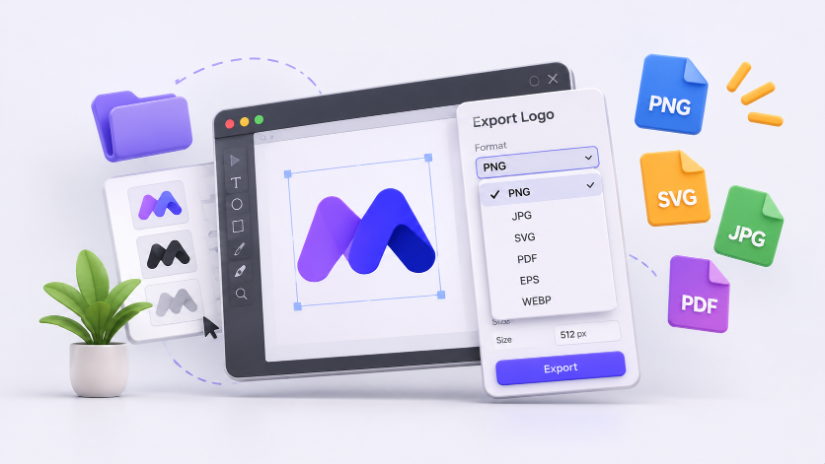
TABLE OF CONTENTS

TL;DR
The best logo file format depends on where the logo is going. Use SVG for websites and apps, PNG for social media, documents and anywhere you need a transparent background, and a vector PDF for print. Keep EPS only for vendors who ask for it, and keep the AI or Figma source file as your master.
- ✅ For screens: SVG. One file stays sharp at 16px and at 1,600px, and it's usually a few kilobytes.
- 🎨 For uploads: PNG with a transparent background. LinkedIn wants a 400 x 400px PNG or JPG for a page logo, not an SVG.
- 🖨️ For printers: a vector PDF. It opens on any computer and keeps every curve editable.
- ⚠️ EPS is a legacy file. Microsoft Office has blocked EPS inserts since April 2017, so send it only when a vendor asks.
- ❌ Never send a JPG when someone asks for "the high-res logo". JPG can't be transparent and can't be scaled up.
A printer emails asking for "the vector version". Your web developer wants "an SVG, not a PNG". Someone in sales needs the logo for a slide and drags a 300px JPG off your website. All three are asking about logo file formats, and most people answer by sending whichever file they can find first.
We deliver logo files every week at ManyPixels, and the same handful of questions come back after every handoff. This guide answers them: what each format does, which file to send each person, and how to check that a "vector" file is really vector before it goes to print.
What's the difference between vector and raster logo files?
A vector logo file stores your logo as mathematical paths, so it scales to any size without losing quality. A raster logo file stores it as a fixed grid of pixels, so it blurs or turns jagged when you enlarge it. SVG, EPS, PDF and AI are usually vector. PNG and JPG are always raster.
Think of it this way. A vector file is a recipe: "draw a curve from here to here, fill it with this blue". The computer redraws the logo fresh at whatever size you ask for, whether that's a business card or a bus wrap. A raster file is a photo of the finished dish. Zoom in far enough and you see the individual pixels.
That's why the direction of conversion matters. You can turn a vector file into a crisp PNG at any size in seconds. Going the other way, from a small PNG to a clean vector, means someone has to redraw it. Auto-trace tools get close on simple marks and fall apart on fine type.
Bottomline: your master logo must be vector, and every raster file should be exported from it, never the other way around.
Which logo file should you send? Start with who's asking
Most confusion about logo file types comes from asking "which format is best?" when the real question is "who needs it, and for what?" Here's the file to send each person, and the one that will cause problems.
Okay, one honest caveat: some vendors still have a "send EPS" line in their artwork guidelines that nobody has updated in a decade. If they insist, send it. Just don't make it your default.
SVG: the default for anything on a screen
SVG (Scalable Vector Graphics) is a vector format written as code, so browsers draw it at whatever size the screen needs. Use SVG for your website header, web app, email builder and favicon. It stays sharp on high-resolution screens, supports transparency, and is usually smaller than a PNG of the same logo.
Because an SVG is really a text file, a developer can change its color with one line of CSS, which is handy for a dark-mode version of your header logo. Microsoft 365 apps also support inserting and editing SVG files in Word, PowerPoint, Outlook and Excel, so it works in decks too if your team is on a current subscription.
The catch is uploads. Because SVG files can contain scripts, letting anyone upload one opens a site to cross-site scripting attacks, so most social platforms and many marketplaces refuse them. LinkedIn's page logo spec, for example, asks for a 400 x 400px image, and the accepted files are PNG and JPG. Google Docs and Slides don't take SVG natively either.
Use SVG wherever you control the code. Use PNG wherever you're filling in someone else's upload form.
PNG: the everyday file for uploads and transparency
PNG is a raster format that supports transparent backgrounds without losing quality. It's the right logo file for social media profiles, marketplace listings, email signatures, Google Docs, slides and anywhere an upload form rejects SVG. Export it from your vector master at the exact size, or double the size, you need.
The most common logo complaint we hear is "why does my logo have a white box around it?" The answer is almost always that someone used a JPG, or exported a PNG with the background layer switched on. A properly exported transparent PNG sits cleanly on any color.
PNG's weakness is that it has a fixed pixel size. A 500px PNG looks fine in a slide and terrible on a roll-up banner. So keep a small set of PNG exports rather than one "high-res" file:
- Square icon: 400 x 400px for LinkedIn and most social profiles, or 1,080 x 1,080px if you want headroom.
- Horizontal logo: about 1,200px wide for documents, slides and email.
- Reversed version: a white or light version for dark backgrounds, also transparent.
If a PNG looks soft, don't stretch it. Go back to the vector master and export a bigger one.
PDF: the safest file to send a printer
A vector PDF is the best logo file format for print. It keeps every path scalable, can hold CMYK and spot colors, and opens on any computer without design software. Printers, sign makers and merch vendors can all work from it, which is why it has largely replaced EPS as the default print file.
There's an important "but". A PDF is a container, not a guarantee. If someone pasted a PNG into a document and hit "Save as PDF", you have a PDF with a raster image inside it, and it will print just as blurry as the PNG. Exporting from Illustrator or Figma keeps the vector data. Exporting from Photoshop or Canva often doesn't.
For commercial printing, the industry standard is PDF/X, a family of ISO 15930 standards built for the graphic arts and professional printing. You don't need to know the versions. If your printer asks for "PDF/X-4", your designer will recognize it as an export preset.
When a printer asks for a vector file and doesn't name a format, send a vector PDF.
Is EPS still worth keeping?
EPS (Encapsulated PostScript) is an older vector format that printers and sign makers used as the standard for decades. It still works in professional print workflows, but it's a legacy file in 2026. Keep one EPS on hand for vendors that ask for it, and send a vector PDF or SVG by default.
Here's the part most logo file format guides skip. Starting with the April 2017 security update, Microsoft turned off support for inserting EPS files by default. The reason is that EPS files allow embedded scripts, which makes them a route for malicious attacks, and Microsoft now recommends replacing them with other formats. So the EPS your designer sent you is useless to anyone on your team working in Word or PowerPoint.
EPS also doesn't preview on most computers without design software, which is why so many people think their logo files are "broken". They aren't. They just need Illustrator or a free tool like Inkscape to open.
That will sound harsh to some print veterans, but it's reflected in how we deliver work: EPS isn't part of the standard export set we hand over at ManyPixels. Clients get SVG, PDF, PNG and JPG exports plus the native source file, and almost nobody comes back asking for EPS.
What about AI, JPG and favicon files?
AI is Adobe Illustrator's native working file. It's the editable master, not something to upload or email to a printer, and it opens properly only in Illustrator. If your logo was built in Figma, the Figma file plays the same role.
JPG is a compressed raster format with no transparency. It's fine for a quick email preview, and that's about it. Every JPG export adds slight compression artifacts around sharp edges, which is exactly where logos have most of their detail.
Favicons are the small icons in browser tabs and search results. Google's favicon guidelines set a minimum of 8 x 8px but recommend going larger than 48 x 48px, and any valid favicon format is supported, including SVG and PNG. Use a simplified icon version of your logo, not the full wordmark squeezed into a square.
How to check if your logo file is really vector
A file ending in .svg, .pdf or .eps can still contain a pixel image inside. To check, zoom in to 800% and look at the edges, open the file in Illustrator or Inkscape in outline view, and check the file size. Smooth edges and visible paths mean vector. A single image box means raster.
This catches more problems than you'd expect. Freelancers sometimes "vectorize" a logo by placing a PNG inside an SVG or PDF, and the extension fools everyone until the banner comes back from the printer. Here are three tests, from quickest to most reliable:
- The zoom test. Open the file in a browser or PDF viewer and zoom to 800% or more. Vector edges stay razor sharp. Raster edges go soft or stair-stepped.
- The outline test. Open the file in Illustrator (View > Outline) or Inkscape (View > Display mode > Outline). A vector logo shows as thin path lines around every letter and shape. A raster one shows as a single rectangle with an X through it, or no paths at all.
- The SVG code test. Open the SVG in any text editor. Lots of <path> tags mean vector. An <image> tag followed by a long string starting with "data:image/png" means someone wrapped a PNG in an SVG.
File size is a useful sanity check too. A simple vector logo is usually a few kilobytes. A "vector" file that weighs several megabytes deserves a closer look.
Run the outline test before anything goes to print. It takes 30 seconds and saves a reprint.
RGB vs CMYK: why the same logo needs two color versions
RGB is the color mode for screens and CMYK is the color mode for print. Your logo needs both: RGB files (SVG, PNG) for anything digital, and CMYK files (usually the print PDF) for anything printed. Using an RGB file in print can make bright colors come out dull, especially vivid blues and greens.
Screens mix light, so they can show colors that ink on paper simply can't reproduce. That's why your brand blue can look electric on a monitor and flat on a flyer. A designer handles this by building a CMYK version, and often a Pantone spot color, that matches the screen version as closely as print allows.
We cover the full difference in our guide to RGB vs CMYK, and if your colors still need defining, start with building a logo color palette. For file formats, the rule is simple: screen files in RGB, print files in CMYK, and label which is which.
The logo file set to ask your designer for
A finished logo should come as a small set of files, not a single image. At minimum, ask for the vector source file, an SVG, a vector PDF and transparent PNGs, each in full color, one color and reversed versions. That covers web, print, social and documents without anyone needing to convert files later.
Name the files so anyone can find the right one: brand-logo-horizontal-fullcolor-rgb.svg beats logo_final_v3.svg every time. And if you're paying for a logo, make sure the quote includes the source file. Without it, every future change means paying someone to redraw it. Our logo design cost guide covers what a fair price includes.
The file set is only half of a usable logo. Lockups, a small-size version, clear space and minimum size rules matter just as much, and we cover all of it in the full logo delivery checklist. Once you have the files, write the usage rules down in your brand guidelines so the team stops dragging logos off the website.
If you'd rather not chase files at all, every ManyPixels logo project ends with native source files plus SVG, PDF, PNG and JPG exports, and you own 100% of the rights to them. See ManyPixels plans if you have logo or brand work coming up.
{{LOGOS_PORTFOLIO="/dev/components"}}
Frequently asked questions
Bottom line
Keep a vector source file as your master, then use SVG for screens, transparent PNG for uploads and a vector PDF for print. Treat EPS as a fallback for the occasional vendor who still asks. Get that set once, name the files clearly, and you'll never send the wrong logo again.
{{BRAND_BANNER="/dev/components"}}

Having lived and studied in London and Berlin, I'm back in native Serbia, working remotely and writing short stories and plays in my free time. With previous experience in the nonprofit sector, I'm currently writing about the universal language of good graphic design. I make mix CDs and my playlists are almost exclusively 1960s.

Top-quality designers
A complete creative team at your fingertips: graphic designers, illustrators, motion designers and more.

Lightning-fast turnaround
Get started today and receive your first update on the next business day.

All-inclusive pricing
Unlimited requests and revisions. One flat monthly fee. No surprises.

Flexible & scalable model
No contract. Scale up and down as needed. Pause or cancel anytime.
Continue reading

Explore some of our best designs
Get inspired by a curated selection of ManyPixels work. Download the portfolio to see what our team can create.